
Before you start
-
Make sure that a DPP Template with a matching data structure exists.
-
Prepare an import file with the required columns.
Generate DPPs
1. Select Generate DPPs.
2. Select the matching DPP Template.
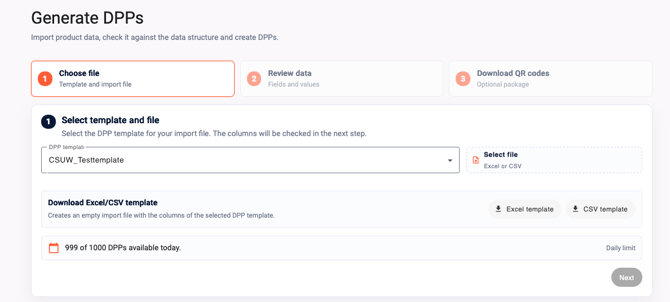
3. Select CSV template to download the expected columns for the selected template.
4. Create the import file with exactly those column names. Do not remove required fields or add unrelated columns.
5. Select Choose file and upload an Excel or CSV file.
6. Check the columns, fields and values in the next step. Correct marked errors and check the file again.
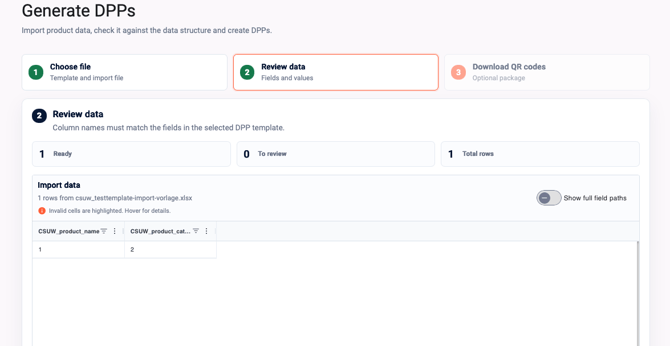
7. Create the DPPs.
8. Download the optional QR package if you need QR codes.
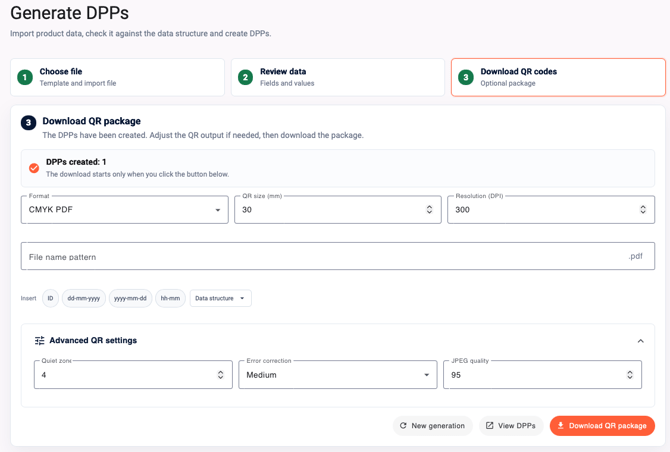
The assistant uses the steps Choose file, Check data and Download QR package.
Common column error
Column names must match the data structure of the selected DPP Template exactly. A file with battery fields such as `article_number` or `battery_type_de` cannot be imported into a template with a different data structure.
If “No header with data fields found.” appears, download the CSV template for the selected template again and copy its header exactly, including all columns.
Note
The platform displays a daily DPP generation limit. Check the remaining quota before a larger import. After successful validation, the assistant shows the number of DPPs to be created and then offers the optional Download QR package step.