
New team member on board? Someone’s switching roles? Inviting new users keeps your processes running smoothly and ensures your data secure by assigning the right access from the start. 🚀
Why Invite New Users?
Here are a few common reasons you might want to invite someone new:
- 👤 New employee joins your team
- 🔄 Role change requires different platform permissions
- 🧪 You want to assign someone to a specific task (like quality checks, documentation, or tracing)
How to Do It
Inviting a new user is quick and easy:
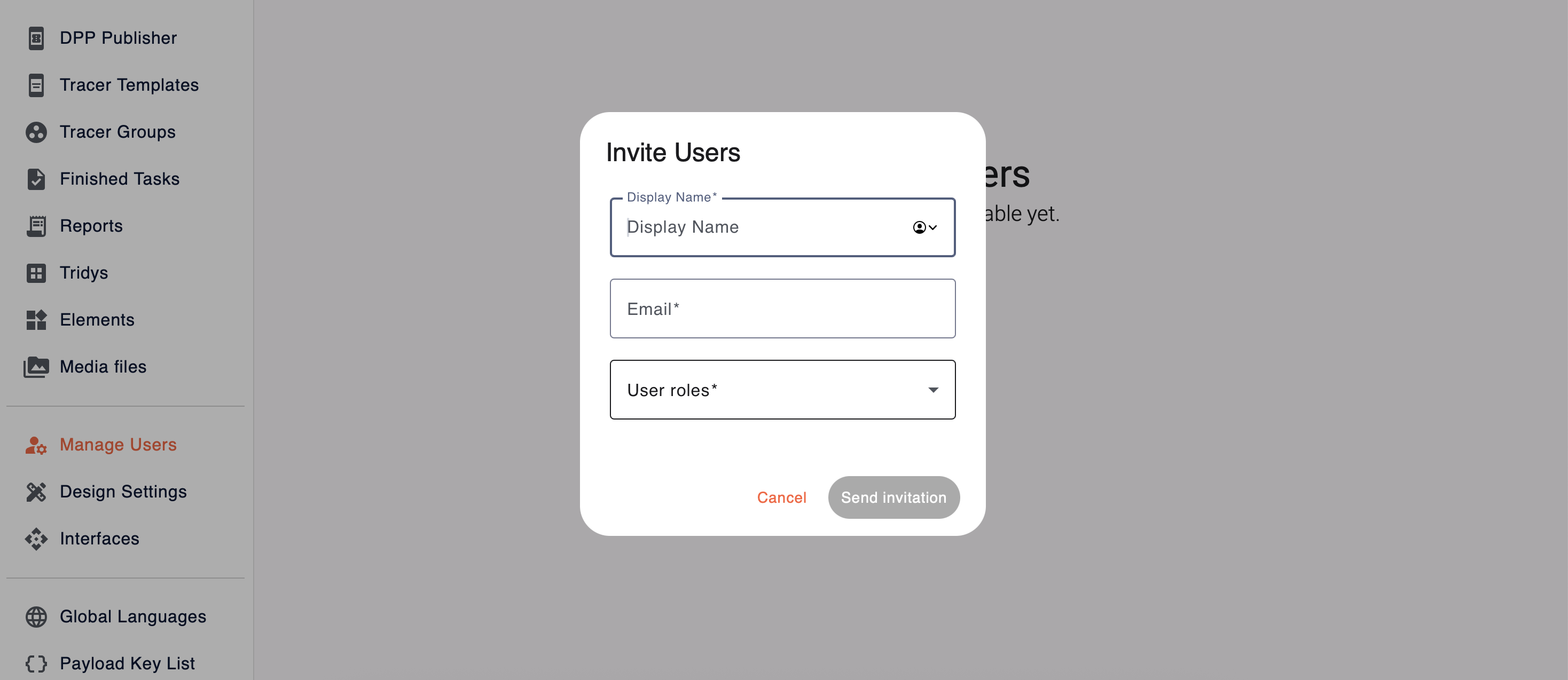
- Log in to the Narravero Content Studio
- Navigate to “Manage Users” from the main menu
- Click “Add New User”
- Enter the name that should appear on the platform
- Enter their email address (make sure it's correct, they’ll get the invite here!)
- Assign a user role from the dropdown:
- Account Manager → Full access to manage platform, users, and system settings
- Content Manager → Creates and edits DPP and Tracer templates
- Work Task Manager → Manages tasks and process execution
- Tracer → Uses the Tracer App to execute and submit process steps
- Tracing Supervisor → Oversees Tracer submissions and ensures data quality
- Click “Send Invitation”
What Happens Next?
- The invited user will receive an email from Narravero
- They follow the link to set their password and sign up
- Done! They can now access the platform ✅
💡 Tip: Keep your user list up to date to avoid accidental access or permission mismatches.
Need help choosing the right role? Just ask!