
Configuring Your Tracer Template
Let’s walk through how to set up your Tracer App to work seamlessly with your product and process flows. 🛰️
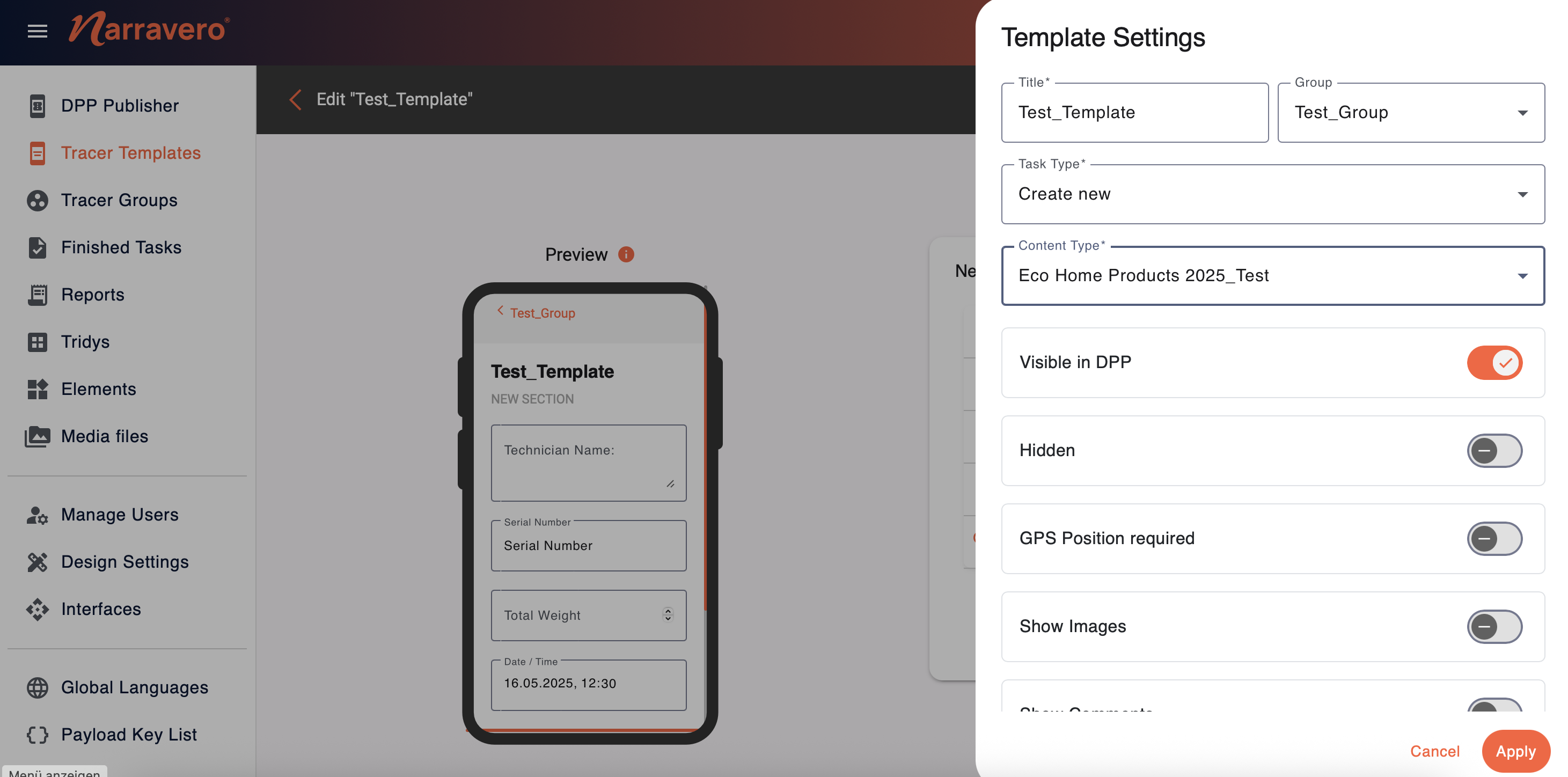
Want to track activities, verify product steps, or connect your Tracer to a Digital Product Passport (DPP)? Here`s show to configure your Tracer template to do just that:
1. Open Your Tracer Template
Navigate to your Tracer Templates and select the one you'd like to configure.
2. Access Tracer Settings
Click on Tracer Settings in the top-right corner. This opens all editable configuration options for your selected template.
3. Define Basic Properties
Customize general info for the template:
Title: Rename the template (e.g., “Incoming Material Check – Facility A”)
Group: Assign the template to a new or existing group for better organization
4. Set the Task Type
Choose how the template interacts with Tridy tasks:
- Create New: Initiates a new Tridy when this tracer is used
- Update Existing: Updates an already existing Tridy task with new data
- Transform: Merge multiple Tridys into one or split a single Tridy into multiple
5. Connect to a DPP (Content Type)
Select DPP to link this Tracer Template directly to a Digital Product Passport. This ensures collected data flows directly into the relevant product profile.
6. Set Boolean Options
Enable or disable optional features depending on the use case:
- Visible in DPP – e.g., display this tracer’s data inside the passport
- Hidden – e.g., deactivate this template temporarily to avoid user access
- GPS Position Required – e.g., track where a task was completed for supply chain transparency
- Show Images – e.g., allow users to take photos or upload from gallery
- Show Comments – e.g., let users add process notes or remarks
7. Optional Tag Actions
Choose additional actions that users can perform with the tag:
- Write Tag – e.g., add new data onto the physical tracer
- Lock Tag – e.g., prevent further changes once a process step is completed
- Verify Tag – e.g., check for authenticity or compliance
- Identify with ID – e.g., link task to a specific user ID
- Identify with FaceID – e.g., add biometric verification for sensitive tasks
Once you're done, make sure to save your configuration, so it’s ready to go live 🚀