
Creating and Configuring a Tracer Template
Let’s explore how to create and configure your Tracer template for process tracking and data collection. 🛠️
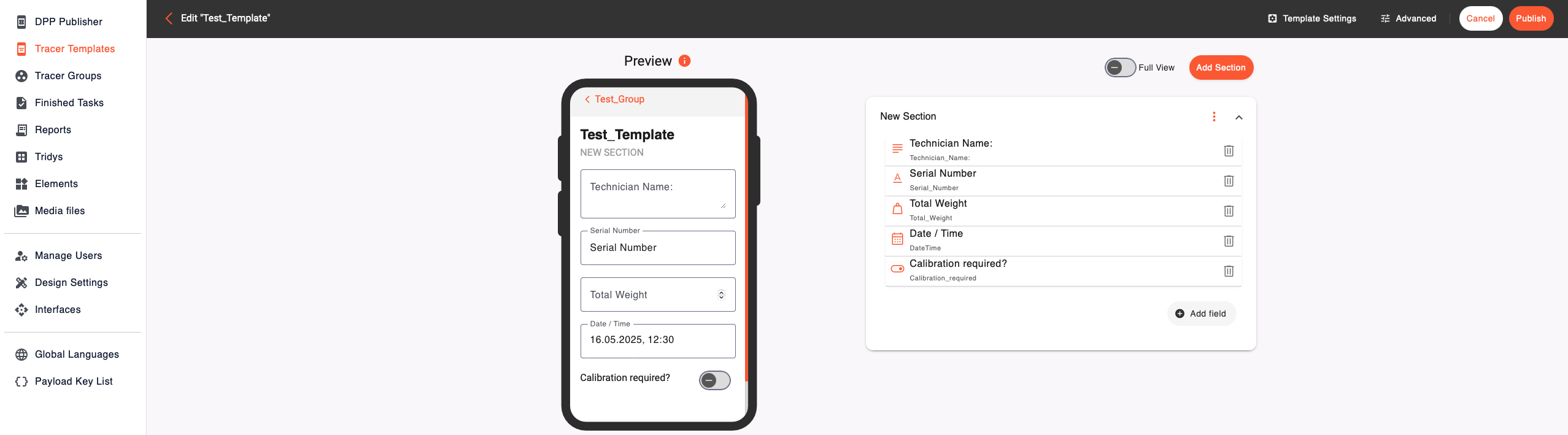
Do you need to build a custom process flow with flexible data entry? Here’s how to set up your own Tracer Template in just a few steps:
1. Create a New Tracer Template
- Click on Add New in the Tracer section
- Give your template a unique name (e.g., "Quality Inspection – Factory B")
- Optionally, assign it to an existing group for better organization
2. Add Sections to Structure Your Template
Click Add Section to organize your process into logical blocks (e.g., "Incoming Materials", "Safety Check", "Final Approval"). Each section helps you keep related fields grouped and easy to follow.
3. Choose Your Field Types
Add entry fields that suit your process, you have plenty of options to build exactly what you need:
- Text – e.g., Enter inspector’s name
- Long Text – e.g., Add a detailed description of an issue
- Number – e.g., Quantity of items inspected
- Decimal Number – e.g., Measured thickness in mm
- Date – e.g., Record the date of inspection
- Switch – e.g., Yes/No toggle for pass/fail
- List of Options – e.g., Select from predefined outcomes like "Approved", "Needs Rework", "Rejected"
- Weight – e.g., Automatically capture weight using a connected scale
Note: Use Weight only when connected to an electronic scale. For manual entries (e.g., “1kg”), use the Decimal Number field instead.
- Tridy – e.g., Link this template to a Tridy task
- Barcode / QR – e.g., Scan an item or tag during the process
- Signature – e.g., Sign off on a completed check
- Document / Image – e.g., Upload a test report or photo evidence
- NFC – e.g., Tap to log using an NFC-enabled tag
- Display Text – e.g., Show important instructions or disclaimers within the template
Once done, you can start tracking your processes manually with the Tracer App, or automate it via the interface between your system and the Narravero tools.
Want to configure your Tracer settings? Check out the next guide on How to set the settings for your Tracer!