
You can align your DPP app templates with your corporate identity directly within the Narravero Content Studio. There are two main ways to customize your DPP templates: by defining global design settings that apply to all templates created by your company, or by adjusting the design of an individual template in the DPP Publisher. 🎨
To set your corporate design globally, open the Design Settings in the Narravero Content Studio. Here, you can upload your company logo, select your official corporate colors for both light and dark mode, define the appearance of widgets, and upload your corporate fonts. These settings ensure that every DPP template designed by your organization automatically reflects your brand’s visual identity. Once all desired adjustments are made, click Save to apply your settings across all DPP templates.
Setting Your Corporate Design (Global Settings⚙️)
To apply your corporate design across all DPP templates:
- Open Design Settings
In the Narravero Content Studio, navigate to Design Settings. - Upload Your Logo
Add your company logo to appear in all DPP templates. - Select Corporate Colors
Choose your official brand colors for both Light Mode and Dark Mode. - Set Widget Design
Define how widgets should appear to maintain a consistent visual style.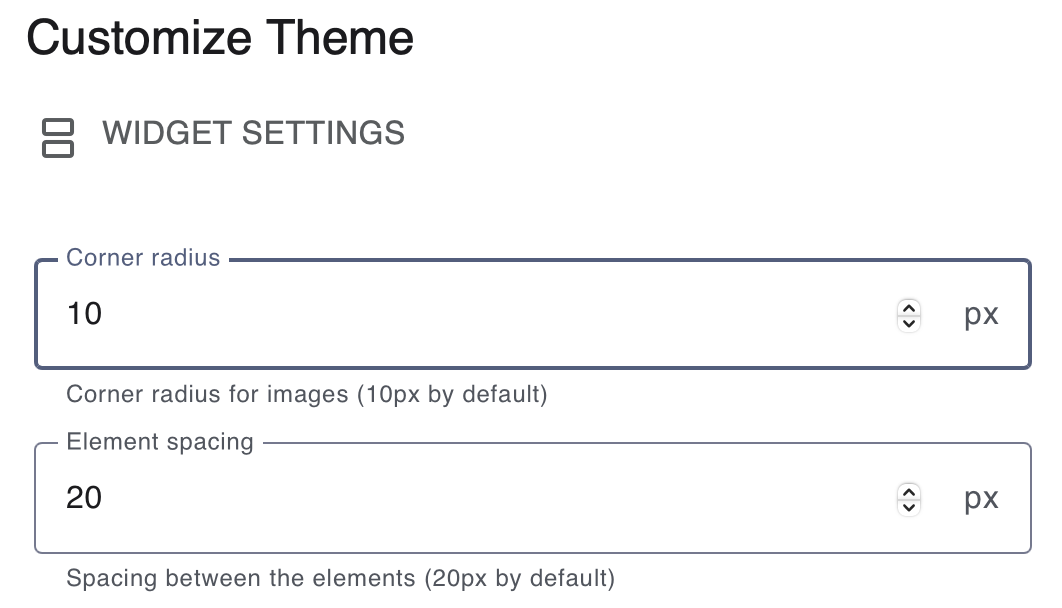
- Upload Corporate Fonts
Add your brand’s approved fonts for use across all templates. - Save Your Settings 💾
Click Save to apply your corporate design to every DPP template created in your organization.
Customizing Your DPP Template Theme
Suppose you want your Digital Product Passport (DPP) templates to match your brand’s look and feel, from colors to fonts. Here's how to do it:
- Access the DPP Publisher
Log into your Narravero Platform and select the DPP Publisher from the dashboard. - Open the Theme Customizer
Click on 'Customize Theme' in the top menu. This opens the visual editor for styling your template. - Adjust Element Styles
Customize the appearance of basic layout features:
Set the Corner Radius to control how rounded image edges appear
Adjust Element Spacing to define how much space you want between each content block ↔️ - Apply Your Corporate Identity
Align the design with your brand's unique look:
Choose between a Light or Dark theme options
Use the Color Picker or enter your Hex Codes to match your brand colors
Upload your Custom Font in.ttfor.otfformat to use your company typography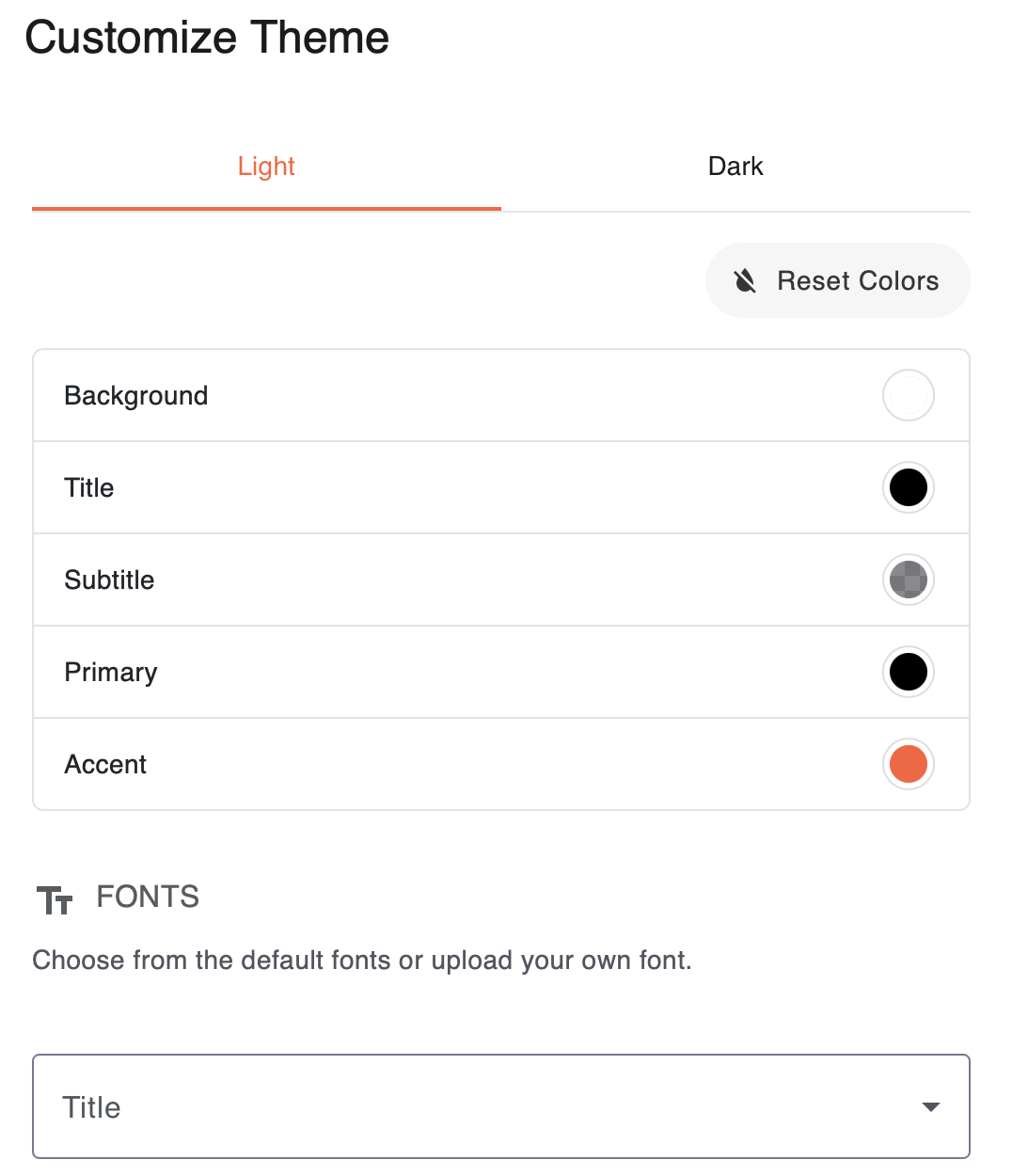
- Preview and Finalize
Check the live preview on the left panel to see your design in action
Make final tweaks if needed to ensure it reflects your branding accuratelyBonus: All changes you make here apply to all DPP templates in your account, no need to update each one individually! Save and You're Done! - Click Save to apply your settings across your templates. 💾
Your DPP template is now harmonized with your corporate identity, clean, consistent, and uniquely yours! 😎