
Let’s make your DPP content dynamic, so each product tells its own unique story. 🎯
Why Dynamic Content?
Every product is different, and its passport should reflect that too. By pulling data directly from process steps captured in the Tracer App, your DPP becomes a living document that reflects the individual history of each product.
What Has Already Happened?
Let’s recap what’s already in place:
What’s Next?
Now it’s time to connect that process data to your DPP, and make it dynamic.
The data collected in Tracer should now appear in your customer-facing DPP. This means the content adjusts automatically based on the specific data of each product.
Note Every Tridy has its own unique DPP. You can customize what is shown for each product individually!
1. Add a Dynamic Field
- Open your DPP template in the DPP Publisher
- Click “Add Element”
- Choose "Text"
- Reference your dynamic data
In the text field, reference your dynamic data like this:
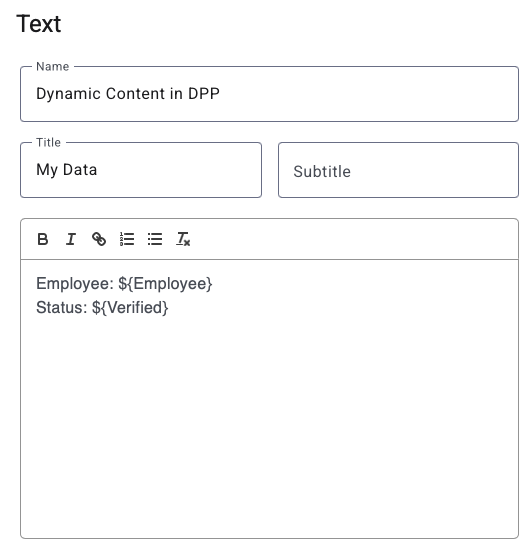
This pulls the value from the system in real time, so the DPP will show exactly who completed the process step for this product.
Example Use Cases
- Process owner →
Tracked by: ${Employee} - Timestamp →
Completed on: ${Date} - Verification status →
Status: ${Verified}
You can use any field that was filled in the Tracer App, just match the field name.
Note: You decide what’s visible in the DPP. Some data can stay confidential, while others become part of your customer transparency journey. 🔐
And that’s it! You’ve now connected real-time data to your DPP, creating a smarter, more personalized product passport.
Dynamic content means more transparency, less manual work. Let your product speak for itself. 🌍
Use Visibility For Dynamic Content
In the visibility settings, you can define conditions for each widget to be displayed in the DPP. This allows widgets to appear or be hidden based on the content of the key in the DPP’s Tridy.
Add a Visibility Setting
- Open your DPP template in the DPP Publisher
- Click the text widget from above “Dynamic Content in DPP”
- Choose "Visibility"
- Choose "Add condition"
- Choose "Comparison"
- Set the "Key", the "Operator" and the "Value" for comparison.
The text widget will only be shown if the condition is fulfilled.