
Narravero in Action: Building and Using Your DPP End-to-End
If you're just getting started with Narravero or want a clear overview of how everything fits together, this guide is for you. From setting up your templates to capturing real process data and finally making your Digital Product Passports (DPPs) accessible to customers — this article walks you through the full journey in five easy steps. It’s your go-to map for turning complexity into clarity. 🧭✨
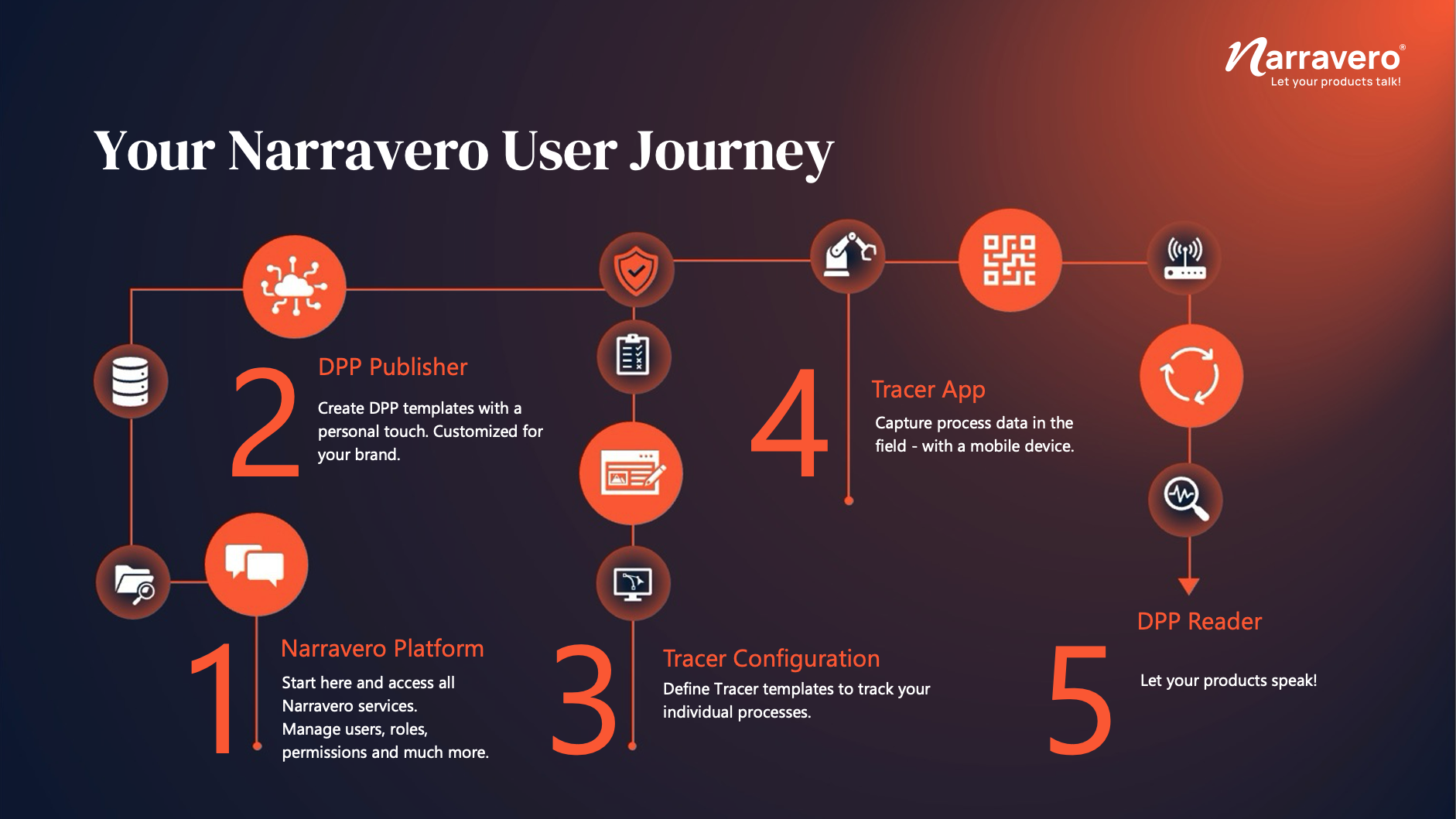
1. Narravero Content Studio (Platform) & General Settings
This is your starting point – the central hub where you manage users, roles, permissions, integrations, and all Narravero services. Everything is connected here.
2. DPP Publisher – Create Your DPP Templates
Use this tool to design your Digital Product Passport (DPP) templates. Customize the structure, layout, and corporate identity (CI) to match your brand and regulatory needs.
3. Tracer Configuration – Define Your Tracer Templates
In this web-based tool, you define process tracking templates – i.e., which data should be captured in the field (e.g., quality steps, materials used, timestamps). Fully customizable to your workflows.
4. DPP Tracer – Capture Process Data in the Field
With the Tracer App (mobile), employees track real-time process data on-site. Data is written directly to the product's NFC tag – creating a verified and traceable record (called a Tridy).
5. DPP Reading – Make Your Product Passport Accessible
Using the Reader App (or temporary web app), customers, partners, and stakeholders can scan the NFC tag and view the product's Digital Product Passport – including dynamic, up-to-date information.
This journey ensures a closed data loop: from structured templates and verified field data, to transparent access for everyone involved.