
Organizing a lot of templates? Template groups help you keep everything clean, structured, and efficient, especially when managing multi-step quality assurance processes or complex workflows across products. 🧩
Why Use Template Groups?
Imagine you're documenting a full QA process for a product line. It includes:
- Incoming goods inspection
- Assembly validation
- Final product check
- Packaging control
With template groups, you can bundle these steps into one logical unit, making it easier to assign, track, and analyze process data across the entire production cycle.
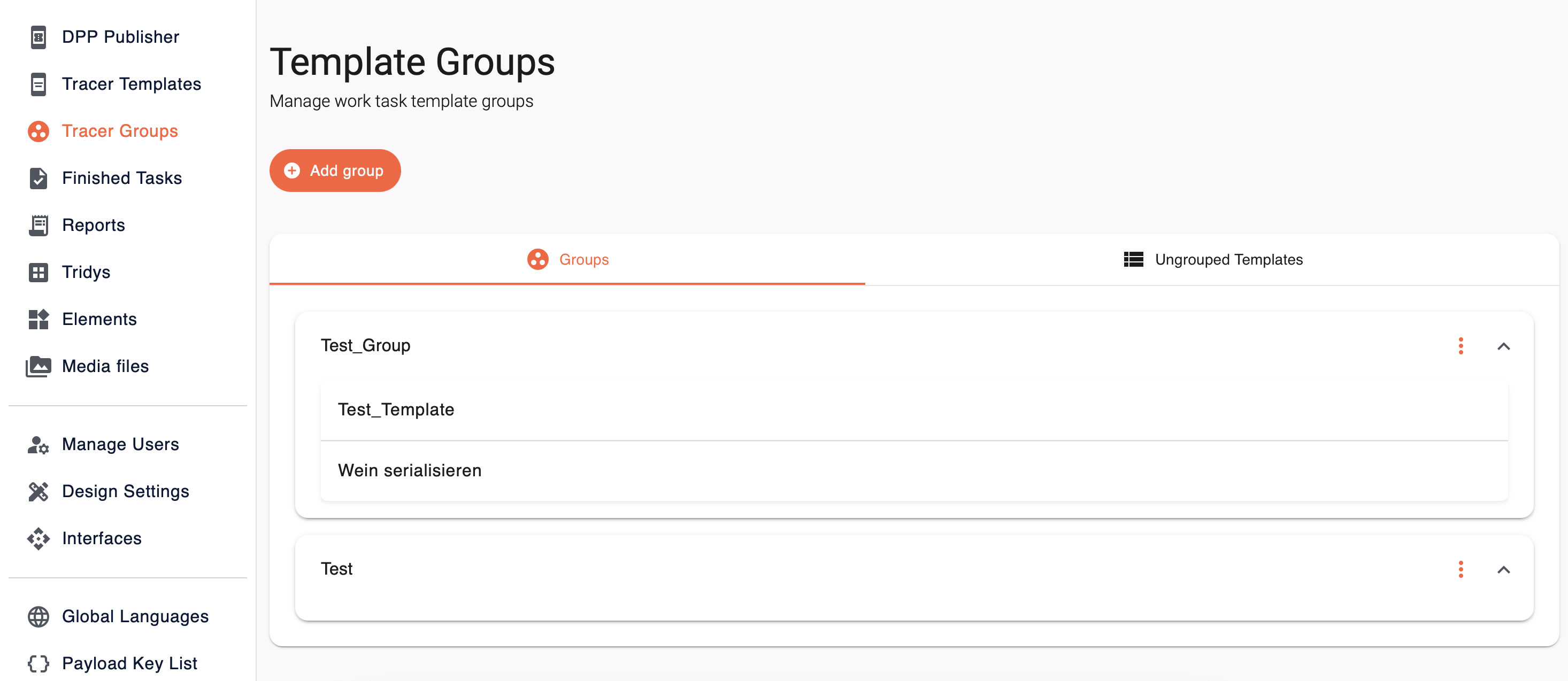
How to Create and Use Template Groups
1. Create a New Group
- Go to the Narravero Platform
- Click on “Tracer Groups” in the main menu
- Click “Add Group”
- Give it a meaningful name (e.g. "QA – Product Line A" or "Assembly Process – Coffee Machines")
2. Assign Templates to the Group
Once your group is created, time to bring your templates in:
- Navigate to “Tracer Templates”
- Select the template you want to assign
- Click “Template Settings”
- In the field “Group”, choose your newly created group
- Assign the DPP template the Tracer template is connected to (e.g. the product it documents)
- Click “Apply”
- Don’t forget to “Publish” the template!
🔄 Changes become visible in the Tracer App and the “Tracer Groups” view only after publishing.
And That’s It!
You’ve now grouped your templates into one organized system. 🎉 This helps you:
- Easily roll out process changes across all steps
- Keep complex operations tidy
- Connect templates directly to products and DPPs
💡 Tip: Use clear, consistent naming for groups to keep things scalable, especially when managing many products or production lines.
Need help planning your group structure? Let us know and we’ll help you map it out!