
Let's explore how to create your own customized DPP template. 😊
Creating Your Customized DPP Template
Suppose you want to create a new DPP template for your latest product line that emphasizes recyclable materials and carbon footprint data. Here's how to do it:
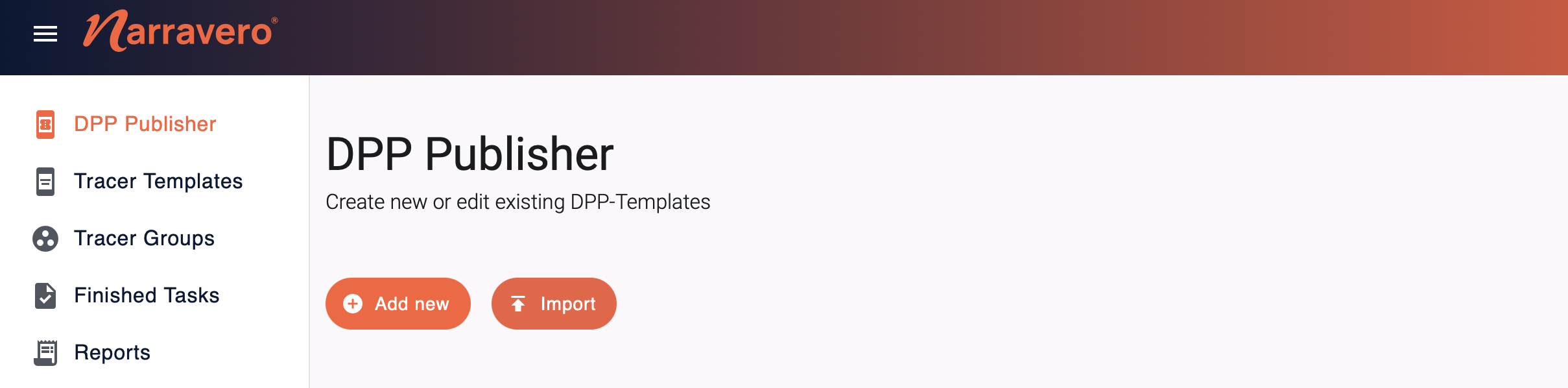
1. Access the DPP Publisher
Log into your Narravero Platform and select the DPP Publisher from the dashboard.
2. Start a New Template
- Click on "Add new" or "Import"
- Enter a descriptive name for your template (e.g., "Eco Home Products 2025")
- Choose your Default language
3. Design Your Template Structure
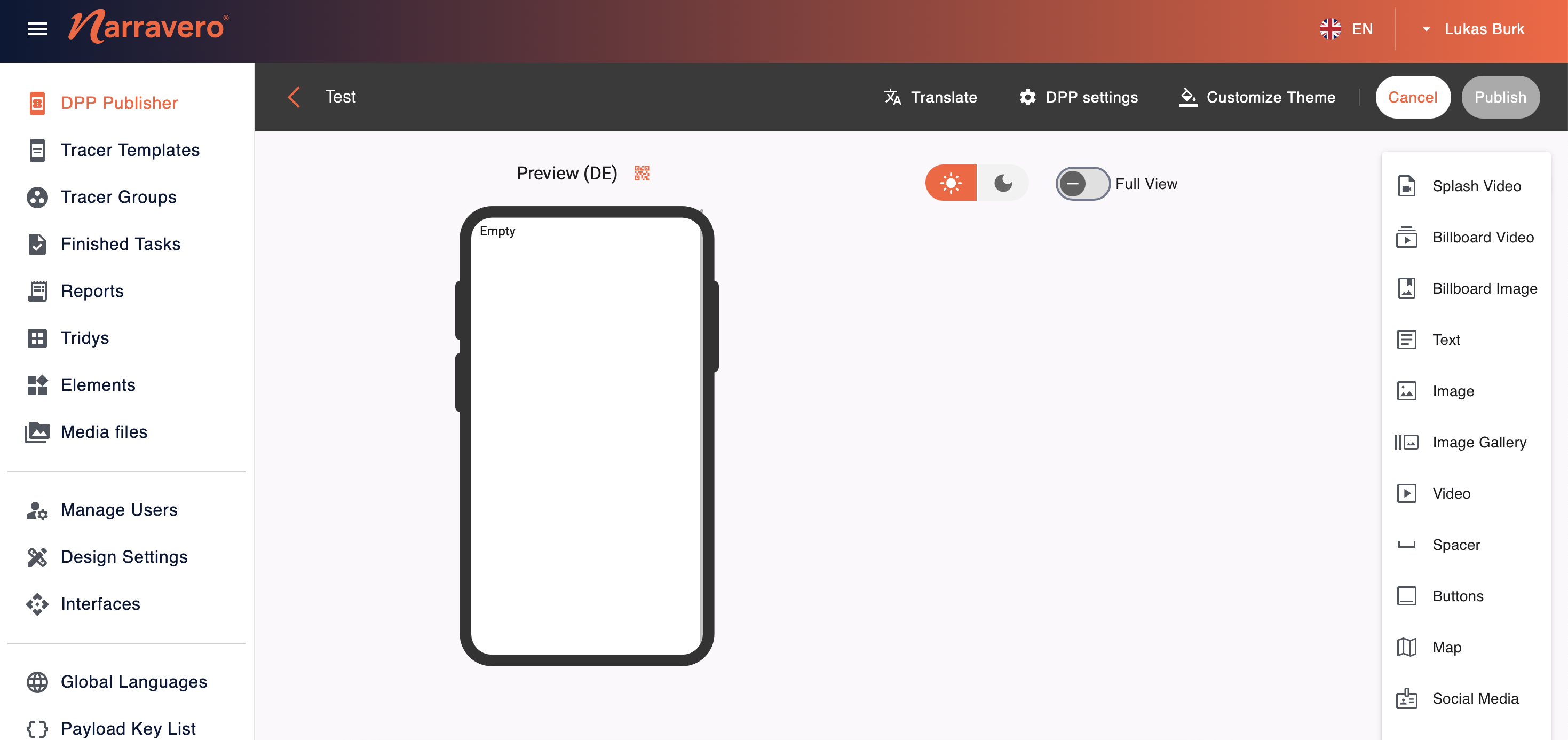
Decide which sections and fields your DPP needs:
- Click "Add Element" to create a new section for your information
- Elements can be used flexibly and vary in their format
- Common sections include: Product Basics, Materials & Composition, Manufacturing, Usage & Care, End-of-Life
4. Customize Field Properties
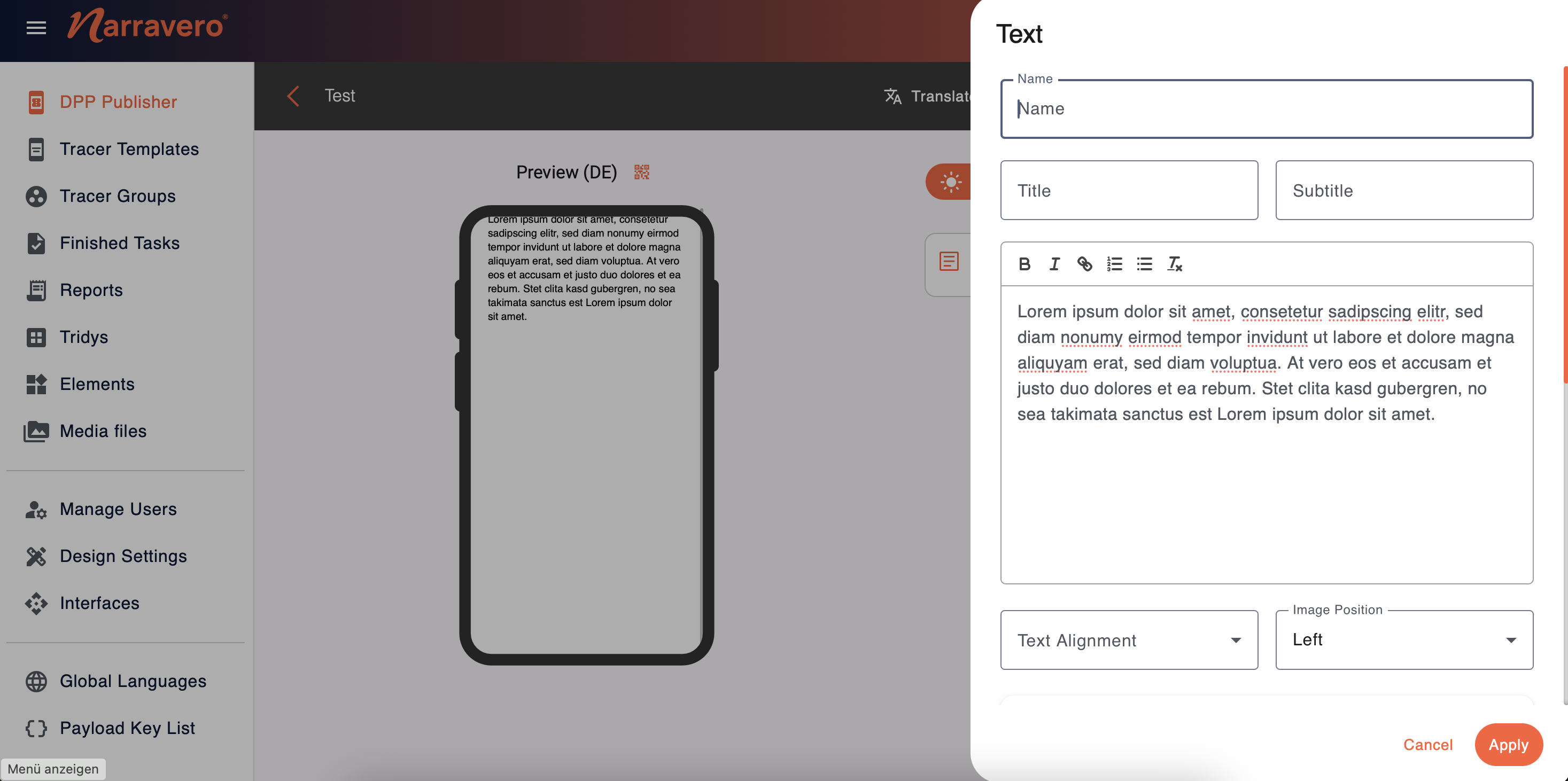
For each field you add, you can specify:
- Field type (text, number, date, dropdown, image, etc.)
- Help text or tooltips to guide data entry
- Validation rules (e.g., format requirements, value ranges)
- Default values or examples
5. Preview and Publish
Before finalizing your template:
- The DPP preview is shown on the left side
- Click and scan the QR code to see how the DPP appears on your devices
- Check how it displays on different devices (desktop, tablet, mobile)
- Make any necessary adjustments to improve usability
6. Save and Publish
When you're satisfied with your template:
- Choose "Publish" to make it available for use
- Set access permissions if needed (e.g. which team members can use it)
Tips for Effective DPP Templates
Make your DPP templates more useful and user-friendly with these best practices:
- Keep it focused - Include only the most relevant information for your specific products
- Use clear language - Avoid jargon and technical terms that might confuse users
- Incorporate visuals - Add spaces for diagrams, images, or videos to demonstrate disassembly or recycling
- Include verification methods - Add fields for certification numbers, QR codes, or links to verification sources
- Think about the end user - Consider how consumers will interact with this information
Common Pitfalls to Avoid
Other common mistakes include:
- Creating overly rigid templates that don't allow for product variations
- Neglecting to include fields for mandatory regulatory information
- Using inconsistent terminology across templates
- Making fields required when data might not always be available
- Forgetting to test the template on mobile devices
With these guidelines, you're now ready to create DPP templates that perfectly match your products and brand identity, while providing valuable sustainability information to your customers. As regulations and market expectations evolve, remember that your templates should be reviewed and updated regularly to stay current. 🌱